


Lowering simulation-distance is not the same as lowering view-distance. One changes the player-centered area the server simulates; the other controls how much terrain data it sends to players. A distant landscape can remain visible even though a farm there no longer behaves as its owner expects.
That distinction matters more than finding a configuration labelled “optimized.” A quieter server is not much of an improvement if villagers stop restocking or an established AFK spot no longer works. The aim is to remove work your community can do without, then check that the gameplay you wanted to keep still works.
This tutorial covers modern Minecraft Java Edition servers. The distance settings apply to Vanilla, Spigot and Paper; plugin commands and YAML settings are labelled separately. It is not a universal recipe for Bedrock, modpacks or Folia. Check documentation against your exact server version: current references can describe newer releases, and neither defaults nor file layouts stay fixed forever.
1. Measure the problem while it is happening
Record your Minecraft version, server software and build, player count, and what players are doing when the slowdown occurs. A busy trading hall and a group exploring fresh terrain are different workloads. Profiling an empty server will not explain either one; Paper’s documentation explicitly requires the problem to be occurring during collection.
On Paper, spark has been bundled since version 1.21. On Spigot, install a compatible standalone spark plugin first; the following commands are not built into an unmodified Vanilla server.
Run these in-game with the required permissions:
/spark tps
/spark profiler start –timeout 600
The profiler command records for ten minutes and returns a report URL. Save that report alongside your configuration and workload notes.
At the normal tick rate, Minecraft targets 20 TPS, leaving 50 milliseconds per tick. MSPT describes how long ticks take, so it reveals pressure that a TPS reading alone can conceal. Compare median and 95th-percentile MSPT: the latter helps expose recurring slow ticks, but can miss rare spikes. Check the maximum too, rather than treating a healthy percentile as proof that nothing stalled.
For intermittent problems, spark’s tick monitor can flag ticks exceeding that budget:
/spark tickmonitor –threshold-tick 50
Record what happened at the same moment. If tick timings stay healthy during the complaint, investigate client frame rate or network conditions before sacrificing server gameplay.
2. Back up and identify which settings actually apply
Before editing, stop the server cleanly and back up the worlds, configuration files and plugin data. Keep the backup outside the live server directory and check that you can restore it. A configuration copy makes rollback convenient; a world backup protects the work behind it.
Use a text editor, preserve YAML indentation and change one thing per experiment. Start the server normally afterwards and inspect the startup log for configuration errors. Do not use /reload or a plugin hot-loader as a shortcut; reloading plugins can leave dependencies and state inconsistent.
For Vanilla, start with server.properties. For Spigot and Paper, also inspect spigot.yml: per-world distance settings can override the properties file.
This fragment shows inheritance, not a performance preset:
world-settings:
default:
view-distance: default
simulation-distance: default
Here, default tells these options to use server.properties. Merge the keys into the existing section; do not replace the whole file or add a second world-settings block. Check named-world sections too, because a world-specific value can override the shared setting.
If you replace numeric overrides with inheritance, treat that as a separate change and record a fresh baseline. Otherwise, you might alter several effective distances before your first controlled test.
3. Separate terrain visibility from simulation
Both distances are measured in chunks around the player, not blocks or a diameter.
- view-distance controls the amount of world data sent to the client. Lowering it trades distant terrain visibility for less work associated with keeping that view available.
- simulation-distance controls the player-centered ticking area. Reducing it can reduce simulation work, but also changes the area in which nearby farms and entities operate.
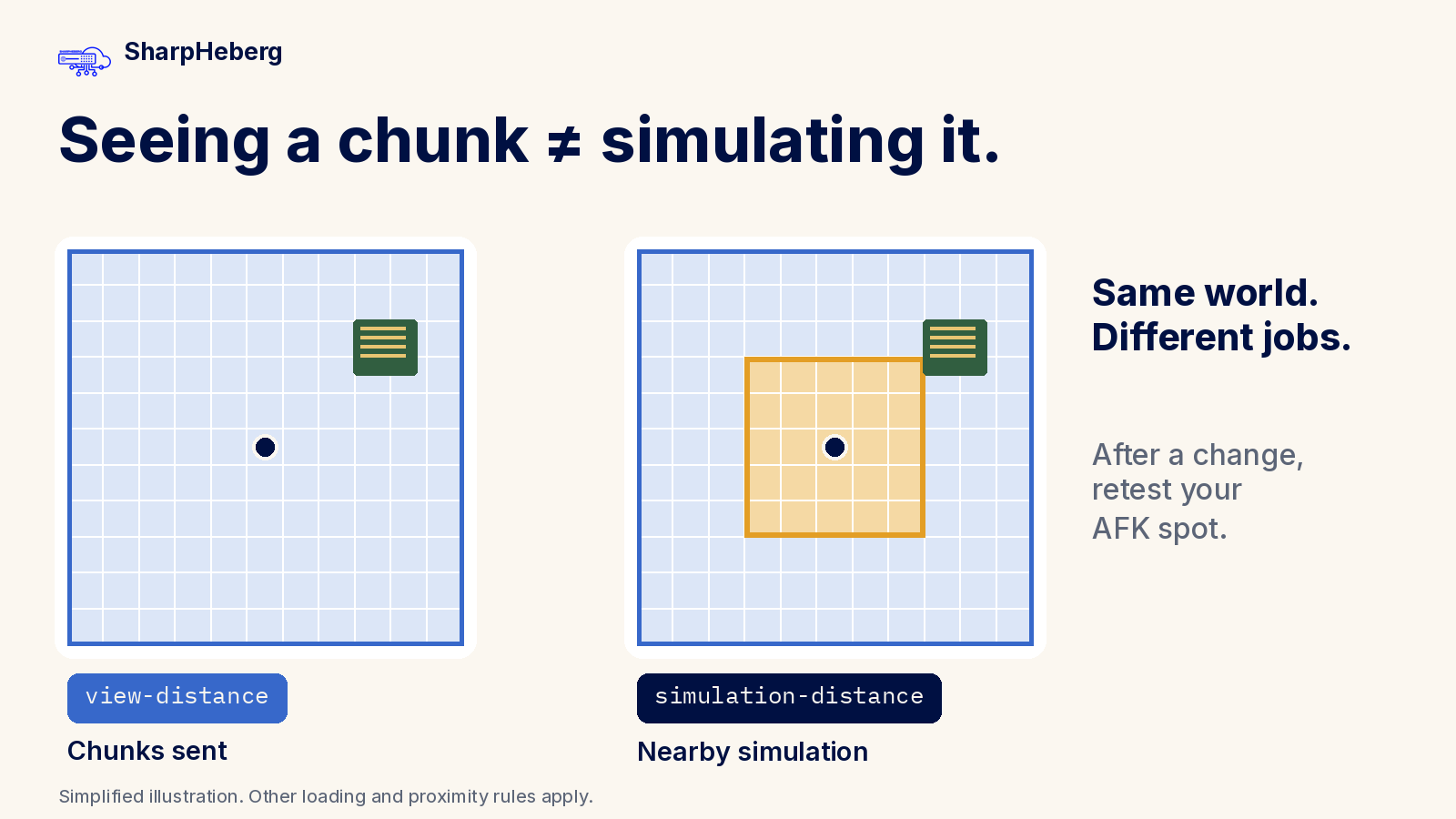
View distance is not free just because some terrain is outside simulation distance. Equally, reducing it is not a substitute for fixing a costly plugin. Choose the first experiment from the profile and the gameplay compromise you can accept.
Try one distance change
Suppose your existing server.properties contains:
view-distance=10
simulation-distance=10
If the profile points toward ticking work across loaded areas, one experiment is to keep view distance unchanged and reduce simulation distance a little:
view-distance=10
simulation-distance=8
These numbers are illustrative, not universal defaults or a tested SharpHeberg preset. If your existing view distance differs, leave your own value alone. Restart cleanly, reproduce the original workload and collect another report before making any further reduction.
If the profile instead suggests that maintaining or sending distant terrain is the problem, test view distance separately. Do not lower both settings together and then try to guess which helped.
Simulation distance is not a complete rulebook for farms. Chunk tickets, which keep chunks loaded for particular reasons, and player-proximity requirements differ between mechanics and versions. “Loaded” does not guarantee that spawning, crop growth, entities and block entities all behave alike. Check the requirements of your particular farm rather than assuming a single distance guarantees operation.
Natural spawning and despawning also have their own distance rules; Spigot’s mob-spawn-range and Paper’s despawn settings add further controls. If a farm stops working after the experiment, first restore the previous distance. Do not immediately compensate by changing several spawn settings.
4. On Spigot or Paper, inspect entity work before cutting ranges
If the profile points to entity processing, inspect the affected area. Look for accumulating dropped items, overcrowded pens or a trading hall doing unnecessary work. Coordinate with the owners before changing builds. Reducing an identified source of excess work is easier to evaluate than weakening entity behavior everywhere.
Two similarly named spigot.yml options do different jobs:
SettingUnitWhat it controlsentity-activation-rangeBlocksHow close entities must be to players to tick normally; behavior outside the range is throttled.entity-tracking-rangeBlocksHow far away entities are sent to players, affecting when they become visible.
These are entity controls, not the chunk-based distances above. A lower tracking range can make mobs appear abruptly; it is not equivalent to reducing their AI workload.
Activation changes need particular care around iron farms and villagers. Community guidance documents broken farms and restocking problems from overly aggressive activation or inactive-villager changes. Leave these settings alone unless profiling justifies the tradeoff, then test the affected entity category rather than copying a complete preset.
The same caution applies to nerf-spawner-mobs, hopper timing and item-merging changes: they alter behavior, not merely resource consumption. Do not make blanket mob-cap cuts or install scheduled entity deletion as your first response to lag.
5. Treat Paper settings as version-specific controls
Paper has additional configuration layers. Its documented layout includes config/paper-global.yml for global settings and config/paper-world-defaults.yml for shared world settings. A world’s paper-world.yml can override those world defaults.
Locate that override file using the documentation for your build. World and dimension directory layouts vary; copying a path from an older tutorial can send you to the wrong place. Copy only the settings you intend to override, not the entire defaults file.
Paper exposes controls for spawning, despawning, collisions and hopper behavior. Those are options for an identified problem, not a checklist to complete. For example, disabling the hopper move event can break protection plugins that depend on it. A small timing improvement would not justify silently bypassing a server rule.
The cited spigot.yml reference is maintained by Paper and includes Paper-specific behavior. Do not assume every nested option it documents exists or behaves identically on pure Spigot. Consult the generated configuration for your implementation and version before adding a key.
6. Follow the profile beyond distance settings
Investigate plugin work
If the report points to a plugin task, save the report and check that plugin’s configuration, compatibility and release notes. Paper explicitly recommends sharing a relevant spark report with plugin developers when investigating performance issues.
Reproduce the issue on a backed-up test copy where possible. Change one feature or plugin at a time, respecting dependencies, then repeat the same activity. Avoid disabling protection or economy plugins on the live server just to see whether TPS rises.
Keep Java and memory tuning evidence-led too. Review garbage-collection behavior and the Java requirements for your exact server build before changing startup options. A copied collection of GC flags is not a universal optimization step.
Pregenerate only when generation is the problem
When slowdown coincides with exploration, compare travel through existing terrain with travel into new terrain. If profiling supports chunk generation as the bottleneck, pregeneration moves that generation work ahead of normal play. Chunky provides tools for this purpose.
Choose the intended area and dimensions, check disk and backup capacity, and schedule the work outside busy hours. Test a limited area first. Pregeneration does not remove the cost of loading or sending existing chunks, or of running farms within them.
Community guides disagree on how broadly pregeneration should be recommended for modern servers. Treat it as a response to measured generation pressure, not compulsory maintenance for every Paper installation.
7. Check gameplay before keeping the change
Repeat the original workload with a comparable player count and distribution. Keep the before-and-after spark reports, configuration difference and notes together. Repeat the comparison if conditions changed substantially.
Then test the server as players use it:
- Run important farms from their usual AFK positions, including collection and transport.
- Check villager trades and restocking over a normal work cycle.
- Run hopper sorters and clocks long enough to reveal missed items or altered timing.
- Check mob visibility and behavior during travel, and test each affected world.
Keep a change only if the measured improvement is useful and the gameplay tradeoff is acceptable. If the benefit is unclear, restore the previous value. Never disable saving to make a performance graph look better.
If the remaining bottleneck appears to be hosting capacity, use the report to guide that conversation. You can review SharpHeberg’s Minecraft hosting alongside your workload and requirements. Hosting choices and configuration changes both deserve the same test: does the server run better while preserving the way your community plays?
Related reading: The real cost of a high-performance Minecraft server in 2025. Treat any pricing in that older article as historical, not as current tariffs.
Sources
Minecraft optimization — community guide


